Maximize Laptop Battery Life: 5 Expert Tips for 2026
To significantly extend laptop battery life in 2026, focus on adaptive charging, optimizing display settings, efficient software management, utilizing power-saving modes, and maintaining optimal operating temperatures.
Are you constantly searching for a power outlet, even with a relatively new laptop? In today’s fast-paced world, gaining an extra two hours of unplugged usage can be a game-changer. This comprehensive guide will show you how to start maximizing battery life on your laptop: 5 expert tips for 2026 to gain 2 extra hours, ensuring your device keeps up with your demanding schedule.
Understanding Your Laptop’s Battery in 2026
Before diving into optimization techniques, it’s essential to grasp the fundamentals of modern laptop batteries. By 2026, most laptops utilize advanced lithium-ion or lithium-polymer cells, known for their high energy density and relatively long cycle life. However, even with these advancements, proper care and understanding of their limitations remain crucial for longevity and performance.
These batteries are designed to handle a certain number of charge cycles before their capacity begins to degrade noticeably. A charge cycle is defined as using all of the battery’s capacity, but not necessarily from 100% to 0%. For instance, using 50% of your battery one day and then recharging it to 100% and using another 50% the next day counts as one charge cycle. Understanding this helps in managing your charging habits more effectively.
The Evolution of Battery Technology
Battery technology has seen significant strides, moving beyond basic power storage to incorporate smart management systems. These systems are designed to protect the battery from overcharging, over-discharging, and overheating, all of which can severely impact its lifespan. However, even with these built-in safeguards, user habits play a pivotal role.
- Adaptive Charging: Many 2026 laptops feature AI-driven adaptive charging, which learns your usage patterns to optimize charging times, preventing prolonged periods at 100% charge.
- Faster Charging: While convenient, frequent fast charging can generate more heat, which is detrimental to battery health over the long term.
- Enhanced Safety Features: Modern batteries include improved thermal management and short-circuit protection, making them safer but still susceptible to degradation from improper use.
Furthermore, internal battery health monitors provide detailed insights into your battery’s current capacity, cycle count, and overall condition. Regularly checking these metrics can give you an early warning if your battery is approaching the end of its useful life, allowing you to plan for replacement or adjust your usage.
In conclusion, understanding your laptop’s battery in 2026 involves recognizing its technological advancements and inherent vulnerabilities. By being informed about charge cycles, adaptive charging, and internal health monitoring, you lay the groundwork for effective battery management and significantly extend its operational life.
Tip 1: Optimize Display and Peripheral Settings
Your laptop’s display is often the biggest power consumer, and external peripherals can also drain energy unnecessarily. Adjusting these settings is one of the most immediate and impactful ways to start maximizing battery life on your laptop: 5 expert tips for 2026 to gain 2 extra hours, giving you more time away from the charger.
Screen brightness, refresh rate, and resolution all contribute to power consumption. Additionally, connected devices like external monitors, USB drives, and Bluetooth accessories continuously draw power, even when idle. A strategic approach to managing these elements can yield substantial gains in battery life.
Managing Screen Brightness and Refresh Rate
Reducing screen brightness is a straightforward yet highly effective method. Most laptops in 2026 offer intuitive ways to adjust brightness, often through function keys or system settings. Aim for the lowest comfortable brightness level that still allows you to work efficiently. High refresh rates, while offering smoother visuals, also consume significantly more power.
- Dynamic Brightness: Enable adaptive brightness if your laptop supports it, allowing the system to automatically adjust based on ambient light.
- Lower Refresh Rate: For everyday tasks that don’t require high fluidity (e.g., word processing, browsing), switch your display to a lower refresh rate (e.g., 60Hz instead of 120Hz or higher).
- Dark Mode: Utilize dark mode in your operating system and applications, especially on OLED screens, where black pixels are turned off entirely, saving power.
Beyond the screen, managing your peripherals is equally important. Disconnect external devices when not in use. Even seemingly low-power devices can cumulatively drain your battery over time. For Bluetooth accessories, ensure they are turned off or disconnected when not actively being used.
By diligently optimizing your display and judiciously managing connected peripherals, you can significantly reduce the constant power draw on your battery. This proactive approach ensures that your laptop’s energy is conserved for essential tasks, directly contributing to those extra hours of usage.
Tip 2: Efficient Software and Background Process Management
The applications and processes running on your laptop, especially those in the background, can be silent battery drainers. Effective software management is a critical strategy for maximizing battery life on your laptop: 5 expert tips for 2026 to gain 2 extra hours, ensuring that your power is directed where it’s truly needed.
Many applications, even when not actively in use, continue to consume CPU cycles, memory, and network resources. This background activity can severely impact battery performance. Identifying and controlling these resource-hungry processes is key to extending your unplugged time.
Identifying and Disabling Resource Hogs
Both Windows and macOS in 2026 offer robust tools to monitor application power consumption. Use these built-in utilities to pinpoint which applications are using the most battery. Often, apps that frequently sync data, run animations, or perform background updates are the culprits.
- Task Manager/Activity Monitor: Regularly check your system’s task manager (Windows) or activity monitor (macOS) to identify and close unnecessary background processes.
- Startup Applications: Review and disable applications configured to launch automatically at startup. Many of these are not essential for immediate use and only serve to slow down your system and drain power.
- Background App Permissions: Modern operating systems allow you to control which apps can run in the background. Restrict these permissions to only essential applications.
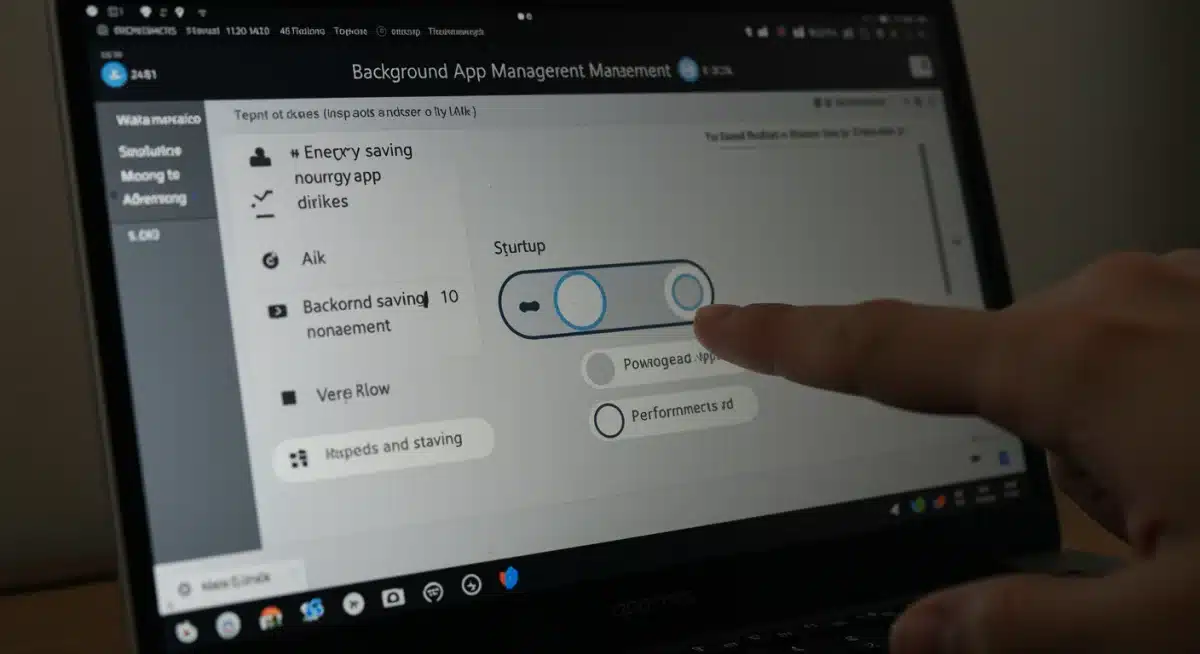
Furthermore, ensure your operating system and applications are up to date. Software developers often release updates that include performance enhancements and bug fixes, which can lead to more efficient power usage. Older, unoptimized software can be a significant drain on your battery, even if it appears to be idle.
By proactively managing your software and background processes, you can prevent unnecessary power consumption. This meticulous approach to digital hygiene not only boosts your battery life but also improves overall system performance, making your laptop more responsive and efficient.
Tip 3: Leverage Power-Saving Modes and Settings
Modern operating systems come equipped with sophisticated power-saving modes designed to extend battery life significantly. Utilizing these features effectively is an indispensable tip for maximizing battery life on your laptop: 5 expert tips for 2026 to gain 2 extra hours, allowing your device to intelligently conserve energy.
These modes often adjust various system parameters automatically, such as CPU clock speed, screen dimming, and network activity, to reduce power consumption. Understanding and customizing these settings can make a profound difference in your laptop’s endurance.
Customizing Your Power Plan
Both Windows and macOS offer customizable power plans or energy saver settings. Instead of relying solely on default settings, take the time to configure a power plan that balances performance with battery longevity based on your typical usage. For instance, you might opt for a more aggressive power-saving profile when you’re primarily browsing or writing documents.
- Balanced vs. Power Saver: Switch to ‘Power Saver’ mode when unplugged. This mode prioritizes battery life over peak performance, which is often sufficient for many tasks.
- Sleep and Hibernation: Configure appropriate sleep and hibernation timers. Allowing your laptop to enter a low-power state quickly when idle can save significant energy.
- CPU Throttling: Some advanced settings allow you to limit the maximum processor state, preventing the CPU from boosting to its highest frequencies and consuming more power than necessary.
Additionally, consider the impact of network connectivity. Wi-Fi and Bluetooth modules consume power, even when idle. If you’re not actively using the internet or a Bluetooth device, consider temporarily disabling these radios. Similarly, if your laptop has a dedicated GPU, ensure it’s not unnecessarily engaged for tasks that can be handled by the integrated graphics, as dedicated GPUs consume much more power.
By mastering your laptop’s power-saving modes and customizing them to your workflow, you enable your device to intelligently adapt its power consumption. This strategic use of built-in features is a cornerstone of achieving an extended battery life and gaining those valuable extra hours.
Tip 4: Adopt Smart Charging Habits and Battery Health Practices
Beyond software and settings, your charging habits play a crucial role in the long-term health and daily performance of your laptop battery. Adopting smart charging practices is a key component of maximizing battery life on your laptop: 5 expert tips for 2026 to gain 2 extra hours, preserving its capacity over time.
Modern batteries are sensitive to extreme charge levels and temperatures. Consistently exposing them to 0% or 100% charge, or operating them in hot environments, can accelerate degradation. A mindful approach to charging can significantly extend your battery’s lifespan.
Optimal Charge Levels and Temperature Management
Experts generally agree that keeping your laptop battery between 20% and 80% charge is ideal for long-term health. While it’s impractical to always adhere strictly to this, avoiding prolonged periods at either extreme can make a difference. Many 2026 laptops feature ‘battery care’ or ‘adaptive charging’ settings that help manage this automatically.
- Avoid Full Discharge: Try not to let your battery drain completely to 0% frequently, as this puts stress on the battery cells.
- Limit Constant 100%: If you typically use your laptop plugged in, consider enabling any ‘battery care’ features that limit the charge to around 80% or 90%. This prevents the battery from perpetually staying at maximum voltage.
- Temperature Control: Overheating is a battery’s worst enemy. Ensure proper ventilation by not blocking air vents, especially when performing intensive tasks or charging. Use a cooling pad if necessary.
Furthermore, avoid using unofficial or low-quality chargers. Counterfeit chargers may not provide stable voltage or current, potentially damaging your battery and affecting its performance. Always use chargers provided by the manufacturer or reputable third-party brands that meet safety standards.
By integrating smart charging habits and actively managing your laptop’s operating temperature, you are not only extending its daily run time but also preserving the overall health and capacity of the battery for years to come. These practices are fundamental to truly maximizing your laptop’s battery life.
Tip 5: Future-Proofing Your Battery with Hardware and Software Upgrades
As technology evolves, so do opportunities to enhance battery performance. Looking ahead to 2026, future-proofing your laptop involves considering hardware upgrades and leveraging emerging software solutions. This forward-thinking approach is the final expert tip for maximizing battery life on your laptop: 5 expert tips for 2026 to gain 2 extra hours, keeping your device competitive and efficient.
While not always feasible for all laptops, certain upgrades can directly or indirectly impact battery life. Additionally, staying abreast of OS updates and new power management software can provide ongoing benefits.
Considering Hardware and Software Enhancements
For some laptop models, upgrading components can lead to better power efficiency. For instance, replacing a traditional HDD with a more energy-efficient SSD can reduce power consumption, as SSDs have no moving parts. Similarly, if your RAM is insufficient, the system might rely more on virtual memory, which can increase disk activity and power usage.
- SSD Upgrade: If your laptop still uses a hard disk drive, upgrading to an SSD is one of the best investments for speed and power efficiency.
- RAM Upgrade: Sufficient RAM reduces the need for constant disk swapping, leading to lower power consumption and improved responsiveness.
- Operating System Updates: Always keep your OS updated. Manufacturers frequently release updates that include optimized power management algorithms and driver improvements.
Beyond physical upgrades, consider the continuous evolution of power management software. In 2026, AI-driven power managers are becoming more sophisticated, learning user behavior and proactively adjusting settings for optimal battery performance. Investing in or regularly utilizing such tools can provide dynamic optimization that manual adjustments can’t.
Furthermore, the trend towards more energy-efficient processors and components means that newer laptops inherently offer better battery life. While not a direct ‘upgrade’ for existing devices, it highlights the importance of considering power efficiency when planning your next laptop purchase.
By strategically considering hardware enhancements and embracing the latest software advancements, you can ensure your laptop remains at the forefront of battery efficiency. This future-proofing mindset not only extends the life of your current device but also prepares you for even greater power longevity in subsequent generations of technology.
| Key Tip | Brief Description |
|---|---|
| Display & Peripherals | Reduce brightness, lower refresh rates, and disconnect unused external devices to cut significant power draw. |
| Software Management | Identify and close resource-intensive background apps and processes; keep software updated for efficiency. |
| Power-Saving Modes | Utilize and customize OS power plans and energy saver settings to automatically optimize power consumption. |
| Smart Charging Habits | Maintain charge between 20-80%, avoid full discharge/charge cycles, and manage operating temperature. |
Frequently Asked Questions About Laptop Battery Life
Modern lithium-ion batteries benefit more from partial charges. It’s best to keep your battery between 20% and 80% most of the time. Full discharge and charge cycles are generally not recommended for regular practice, as they can accelerate battery degradation over time.
While modern laptops have circuitry to prevent overcharging, keeping the battery constantly at 100% can still contribute to long-term degradation. Many 2026 laptops offer ‘battery care’ features that limit the charge to 80-90% when plugged in for extended periods, which is beneficial.
For short breaks, sleep mode is convenient and uses minimal power. For longer periods (several hours or overnight), shutting down is better for battery conservation and system health. Hibernation is a middle ground, saving your session while using very little power.
Yes, indirectly. High temperatures are detrimental to battery health and performance. A cooling pad helps maintain optimal operating temperatures, reducing stress on the battery and potentially slowing down its degradation, thus preserving its overall capacity and lifespan over time.
Both Windows and macOS provide built-in tools for checking battery health. On Windows, you can generate a battery report via Command Prompt. On macOS, check the ‘Battery Health Management’ section in System Settings. Third-party utilities also offer detailed battery diagnostics.
Conclusion
Achieving an extra two hours of battery life on your laptop by 2026 is entirely within reach with a combination of informed practices and smart adjustments. By understanding your battery’s technology, optimizing display and peripheral settings, diligently managing software and background processes, leveraging your operating system’s power-saving modes, and adopting intelligent charging habits, you can significantly extend your device’s unplugged endurance. These expert tips are not just about temporary gains; they are about fostering habits that contribute to the long-term health and efficiency of your laptop, ensuring it remains a reliable companion for years to come.