Optimize Home Wi-Fi: Boost Speed 20% in 10 Minutes (2025 Guide)

This comprehensive guide details how to effectively optimize your home Wi-Fi network in 2025, enabling users to achieve up to a 20% speed increase with minimal effort and time.
Are you tired of buffering videos and slow downloads? In 2025, achieving blazing-fast internet is more accessible than ever. This guide will show you how to start optimizing your home Wi-Fi to boost its speed by a remarkable 20% in just 10 minutes, transforming your online experience.
Understanding Your Wi-Fi Network Fundamentals
Before diving into optimization, it’s crucial to grasp the basics of how your Wi-Fi network operates. Your home network is a complex ecosystem of devices, signals, and potential interferences. Understanding these fundamentals empowers you to make informed decisions about improving your connectivity.
At its core, Wi-Fi relies on radio waves to transmit data between your router and your devices. These waves can be affected by numerous factors, from physical obstructions to other wireless signals, all of which can degrade performance. Knowing what influences your signal is the first step toward effective optimization.
The Role of Your Router
Your Wi-Fi router is the central hub of your home network, acting as the gateway to the internet. Its placement, age, and configuration are paramount to your network’s efficiency.
- Placement: Central location minimizes signal loss.
- Age: Older routers might not support newer, faster Wi-Fi standards.
- Firmware: Outdated firmware can lead to security vulnerabilities and reduced performance.
Regularly checking your router’s status and ensuring it’s up-to-date can prevent many common Wi-Fi issues. Often, a simple reboot can resolve temporary glitches, but sustained performance requires a more strategic approach.
The frequency bands your router uses, typically 2.4 GHz and 5 GHz, also play a significant role. The 2.4 GHz band offers wider coverage but lower speeds and is more susceptible to interference. The 5 GHz band provides faster speeds and less interference but has a shorter range. Choosing the right band for your devices and environment is a key optimization technique.
Strategic Router Placement for Optimal Signal
The physical location of your Wi-Fi router is arguably one of the most critical factors in determining your network’s speed and reliability. Many users simply place their router wherever it’s convenient, often overlooking the impact this has on signal propagation throughout their home.
Think of your Wi-Fi signal as a light bulb; its light diminishes the further away you get and can be blocked by obstacles. The same principle applies to your router’s wireless signal. Walls, furniture, and even certain appliances can act as signal inhibitors, creating dead zones and reducing overall coverage.
Avoiding Obstacles and Interference
To maximize your Wi-Fi signal, aim to minimize physical barriers and sources of electronic interference. This often means moving your router away from common household items that can disrupt its signal.
- Central Location: Place your router in a central, open area of your home, allowing the signal to radiate evenly.
- Height: Elevate your router. Placing it on a desk or shelf, rather than on the floor, can improve signal reach.
- Avoid Obstacles: Keep the router away from thick walls, metal objects, large appliances (microwaves, refrigerators), and cordless phones, which can absorb or interfere with the signal.
Even seemingly innocuous items like fish tanks and mirrors can degrade Wi-Fi performance. Water absorbs Wi-Fi signals, and mirrors can reflect them, creating unpredictable dead spots. By being mindful of these elements, you can significantly improve your network’s stability and speed.
In multi-story homes, consider placing the router on the main floor or a higher level, depending on where most of your internet usage occurs. Experimenting with different placements, even by just a few feet, can yield surprising improvements in signal strength and overall Wi-Fi performance.
Updating Router Firmware and Security Protocols
Keeping your router’s firmware updated is not just about security; it’s a vital step for performance optimization. Manufacturers frequently release firmware updates that include bug fixes, performance enhancements, and support for newer technologies. Neglecting these updates can leave your network vulnerable and operating below its potential.
Outdated firmware can lead to slower speeds, dropped connections, and compatibility issues with newer devices. It’s often a simple process, usually accessible through your router’s web interface, and can make a noticeable difference in your Wi-Fi experience without requiring any new hardware.
The Importance of WPA3 Encryption
Beyond performance, security is paramount. Using the latest encryption protocols protects your network from unauthorized access and ensures your data remains private. WPA3 (Wi-Fi Protected Access 3) is the current standard, offering superior security compared to older protocols like WPA2.
- Enhanced Security: WPA3 provides stronger encryption, making it much harder for attackers to crack your password.
- Individualized Data Encryption: Even on open networks, WPA3 can encrypt individual user data, a significant privacy improvement.
- Improved Network Integrity: It helps prevent security vulnerabilities that could be exploited to compromise your network.
Check your router’s settings to ensure WPA3 is enabled. If your router doesn’t support WPA3, consider upgrading to a newer model that does, especially if security is a top concern. This not only enhances protection but often comes with performance benefits from newer hardware.
Regularly changing your Wi-Fi password to a strong, unique phrase is another essential security measure. Avoid easily guessable passwords and integrate a mix of uppercase and lowercase letters, numbers, and symbols. A secure network is a foundation for a reliable and efficient Wi-Fi connection.
Optimizing Wi-Fi Channels and Bandwidth
One of the most overlooked aspects of Wi-Fi optimization is channel selection. Just like different radio stations, Wi-Fi signals operate on various channels. If multiple networks in your vicinity are using the same channel, it creates congestion, leading to slower speeds and dropped connections.
Most routers are set to auto-select a channel, which doesn’t always choose the optimal one. Manually selecting a less congested channel can significantly improve your Wi-Fi performance, especially in densely populated areas like apartment buildings. This is a quick and free adjustment that can yield immediate benefits.
Choosing the Right Frequency Band
As mentioned, Wi-Fi networks typically operate on two frequency bands: 2.4 GHz and 5 GHz. Understanding when to use each can drastically optimize your experience.
- 2.4 GHz Band: Best for longer ranges and penetrating walls, ideal for devices further from the router or for older devices. However, it’s more prone to interference from other household appliances.
- 5 GHz Band: Offers faster speeds and less interference, perfect for high-bandwidth activities like streaming 4K video or online gaming, especially for devices closer to the router. Its range is shorter than 2.4 GHz.
Many modern routers offer band steering, automatically directing devices to the most appropriate band. If yours doesn’t, consider creating separate SSIDs (network names) for each band, allowing you to manually connect devices to the optimal frequency.
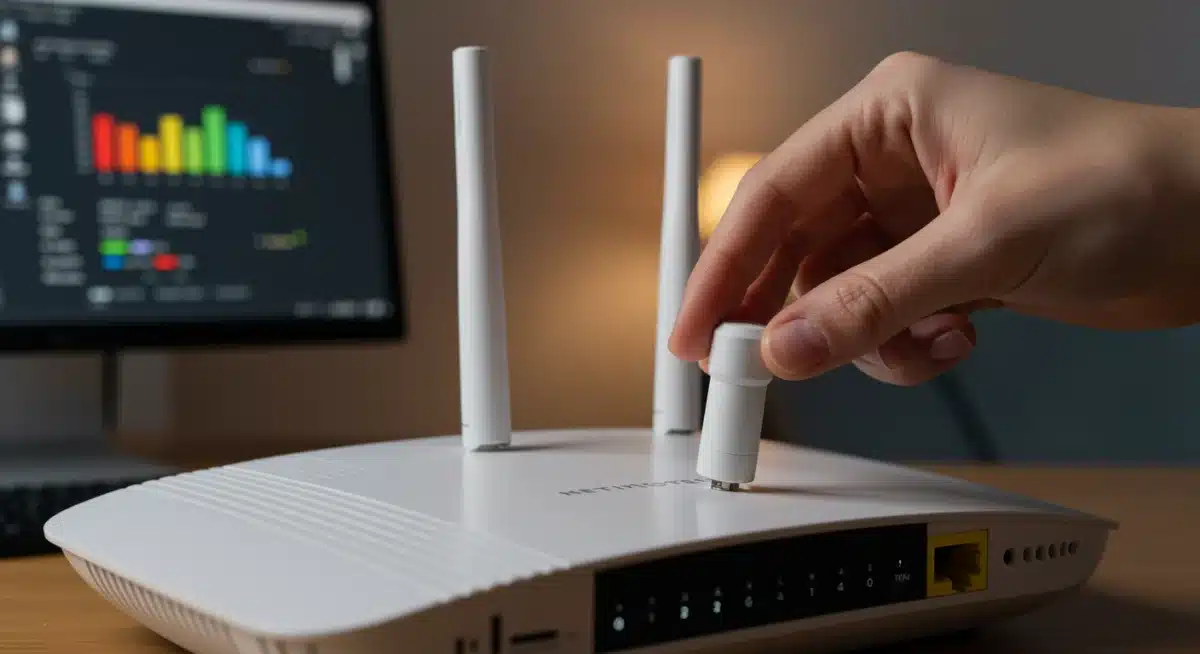
Utilizing Wi-Fi analyzer apps on your smartphone or computer can help identify the least congested channels in your area. These apps scan surrounding networks and recommend optimal channels for both 2.4 GHz and 5 GHz bands, allowing you to make an informed decision when adjusting your router settings.
Managing Connected Devices and Quality of Service (QoS)
The more devices connected to your Wi-Fi network, the more bandwidth is shared among them. This can lead to a noticeable slowdown, especially if multiple devices are engaged in bandwidth-intensive activities simultaneously. Effective device management is crucial for maintaining consistent speeds.
Consider disconnecting devices that aren’t actively in use, especially those that might be consuming background data. Smart home devices, while convenient, can cumulatively put a strain on your network if not managed properly. Prioritizing essential devices ensures critical tasks always have sufficient bandwidth.
Leveraging Quality of Service (QoS) Settings
Quality of Service (QoS) is a router feature that allows you to prioritize certain types of network traffic over others. This means you can ensure that your video calls, online gaming, or streaming services get preferential treatment, even when other devices are active.
- Prioritize Applications: Set higher priority for applications like video conferencing, gaming, or media streaming.
- Prioritize Devices: Assign higher priority to specific devices, such as your work laptop or main entertainment system.
- Bandwidth Allocation: Some QoS settings allow you to allocate a minimum amount of bandwidth to certain devices or applications.
Configuring QoS correctly can dramatically improve the user experience for critical activities, preventing lag and buffering. Access your router’s administration page to explore and enable these settings. While the interface may vary by manufacturer, the core functionality remains similar.
Without QoS, your router treats all data packets equally. This can lead to a frustrating experience when a large download on one device impacts the performance of a crucial video call on another. By managing devices and utilizing QoS, you regain control over your network’s performance.
Considering Wi-Fi Extenders, Mesh Systems, and Upgrades
Sometimes, even with optimal router placement and settings, your home’s architecture or sheer size might prevent a single router from providing adequate coverage. In such cases, extending your Wi-Fi signal becomes necessary. There are several effective solutions, each suited for different needs and budgets.
Wi-Fi extenders, also known as repeaters, are a cost-effective way to boost your signal into dead zones. They capture your existing Wi-Fi signal and re-broadcast it, effectively extending its reach. While useful, they can sometimes introduce latency and might not be ideal for high-bandwidth tasks.
The Power of Mesh Wi-Fi Systems
For larger homes or those with complex layouts, a mesh Wi-Fi system offers a superior solution. Mesh systems consist of multiple nodes that work together to create a single, seamless network throughout your entire home. This eliminates dead zones and provides consistent, fast Wi-Fi everywhere.
- Seamless Coverage: Devices automatically switch to the strongest signal as you move around your home.
- Easy Setup: Most mesh systems are designed for straightforward installation and management via a smartphone app.
- Scalability: You can easily add more nodes if you need to expand your coverage further.
While a higher initial investment, mesh systems often deliver a significantly better user experience compared to traditional extenders. They are particularly beneficial for smart homes with numerous connected devices, ensuring every gadget has a strong, reliable connection.
If your router is several years old, consider upgrading to a newer model that supports Wi-Fi 6 (802.11ax) or even Wi-Fi 7 (802.11be), the latest standards. These newer technologies offer substantial improvements in speed, efficiency, and capacity, especially in environments with many connected devices, future-proofing your network for years to come.
Regular Maintenance and Advanced Tips
Optimizing your Wi-Fi is not a one-time task; it’s an ongoing process. Regular maintenance ensures your network continues to perform at its best, adapting to changes in your home environment and new interference sources. Simple habits can prevent many common connectivity issues.
Periodically rebooting your router, for example, clears its memory and can resolve minor performance hiccups. Just like any computer, routers can benefit from a fresh start. Aim to do this at least once a month, or whenever you notice a slight dip in performance.
Advanced Troubleshooting and Monitoring
For those looking to dive deeper, network monitoring tools can provide invaluable insights into your Wi-Fi’s health. These tools can track bandwidth usage, identify specific devices consuming the most data, and even detect intermittent signal drops.
- Bandwidth Monitoring: Identify bandwidth hogs and manage their consumption.
- Interference Detection: Pinpoint sources of interference that might be degrading your signal.
- Performance Logs: Review router logs for recurring issues or errors that need addressing.
Consider enabling guest networks to separate your main network from visitors’ devices. This not only enhances security but also prevents guest devices from consuming critical bandwidth needed for your primary activities. Many modern routers offer this feature with customizable access controls.
Finally, remember that your internet service provider (ISP) also plays a role in your overall speed. If you’ve tried all optimization steps and still experience slow speeds, it might be time to contact your ISP to check your connection or discuss upgrading your internet plan. Sometimes, the bottleneck isn’t your Wi-Fi, but the speed coming into your home.
| Key Optimization Step | Brief Description |
|---|---|
| Router Placement | Place router centrally and elevated, away from obstructions and interference, for optimal signal distribution. |
| Firmware Updates & Security | Regularly update router firmware and enable WPA3 for enhanced performance and network security. |
| Channel & Bandwidth | Select less congested Wi-Fi channels and utilize 5 GHz band for faster speeds where possible. |
| QoS & Device Management | Prioritize critical devices/applications using QoS and disconnect idle devices to preserve bandwidth. |
Frequently Asked Questions About Wi-Fi Optimization
It’s advisable to check for router firmware updates at least once every few months. Manufacturers frequently release updates that include security patches, performance improvements, and bug fixes, all of which contribute to a more stable and faster Wi-Fi network.
While Wi-Fi extenders can expand coverage, they sometimes introduce latency and can halve your bandwidth because they have to receive and re-broadcast the signal. For optimal speed and coverage in larger homes, a mesh Wi-Fi system is generally a more effective solution.
The ideal placement for your Wi-Fi router is in a central, open location within your home, elevated from the floor. Avoid placing it near thick walls, metal objects, or large appliances like microwaves, which can interfere with the signal and create dead zones.
The choice depends on your needs. The 2.4 GHz band offers wider coverage and better wall penetration but is slower. The 5 GHz band provides faster speeds and less interference but has a shorter range. Use 5 GHz for devices close to the router for high-bandwidth tasks, and 2.4 GHz for devices further away.
Quality of Service (QoS) settings allow you to prioritize network traffic for specific applications or devices. This ensures that critical activities like video conferencing, online gaming, or streaming receive adequate bandwidth, preventing lag and maintaining smooth performance even when the network is busy.
Conclusion
Achieving a significant boost in your home Wi-Fi speed by 20% in just 10 minutes in 2025 is an entirely achievable goal, requiring a blend of strategic adjustments and informed maintenance. By understanding the fundamentals of your network, optimizing router placement, keeping firmware updated, and intelligently managing your devices, you can transform your online experience. These steps, from selecting the right channels to leveraging advanced features like QoS, collectively contribute to a more robust, faster, and reliable internet connection, ensuring your digital life remains seamless and efficient.