Master Your Smartphone Privacy: 7 Essential Settings for 2026
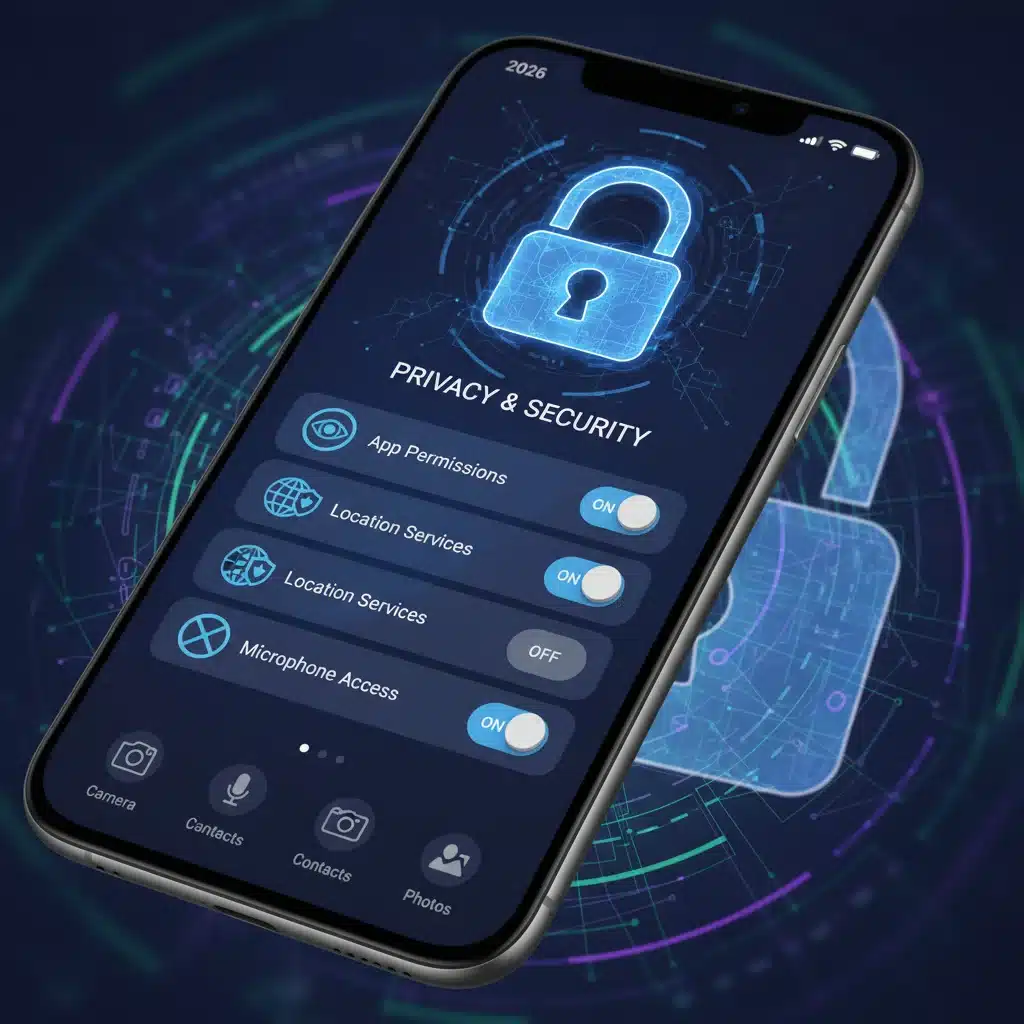
Unlocking Your Data: 7 Essential Privacy Settings for Your New Smartphone in 2026
In an increasingly connected world, our smartphones have become extensions of ourselves, holding our most intimate data, conversations, and personal information. As technology advances, so do the methods used to access and exploit this data. With 2026 upon us, the landscape of digital privacy is more complex than ever. Whether you’ve just unboxed the latest flagship device or are looking to fortify your existing one, understanding and configuring your smartphone privacy settings is paramount. This comprehensive guide will walk you through seven essential privacy settings that every smartphone user should master to safeguard their digital life in the coming year.
The digital realm is a double-edged sword. On one hand, it offers unparalleled convenience, connectivity, and access to information. On the other, it presents a constant battle against data breaches, identity theft, and unwanted surveillance. Our smartphones, being our primary interface with this world, are often the first line of defense. Ignoring or neglecting your smartphone privacy settings is akin to leaving your front door unlocked in a bustling city; it’s an open invitation for others to step inside your digital life. As we navigate 2026, the sophistication of data collection and privacy invasion techniques continues to evolve, making proactive privacy management a non-negotiable aspect of responsible smartphone ownership.
Understanding the Evolving Privacy Landscape in 2026
The year 2026 brings with it new technological advancements, and with them, new challenges for personal privacy. Artificial intelligence (AI) is more deeply integrated into our devices, offering personalized experiences but also potentially collecting more granular data. The rise of interconnected smart devices (IoT) means your smartphone might be a gateway to an even larger network of personal information. Regulatory frameworks worldwide are also shifting, but often struggle to keep pace with rapid technological innovation. This dynamic environment underscores the critical need for users to take an active role in managing their smartphone privacy settings. It’s no longer enough to simply accept default settings; a conscious effort is required to protect your digital footprint.
Why Default Settings Are Not Enough
Manufacturers and operating system developers often prioritize user experience and functionality over stringent privacy by default. This means that out of the box, many smartphones are configured to collect a significant amount of data to power features, personalize ads, and improve services. While some of this data collection is benign, a substantial portion can be used in ways you might not approve of, or even compromise your security if mishandled. Therefore, diving deep into your smartphone privacy settings and customizing them to your comfort level is the first and most crucial step in securing your digital identity.
1. Review and Revoke App Permissions
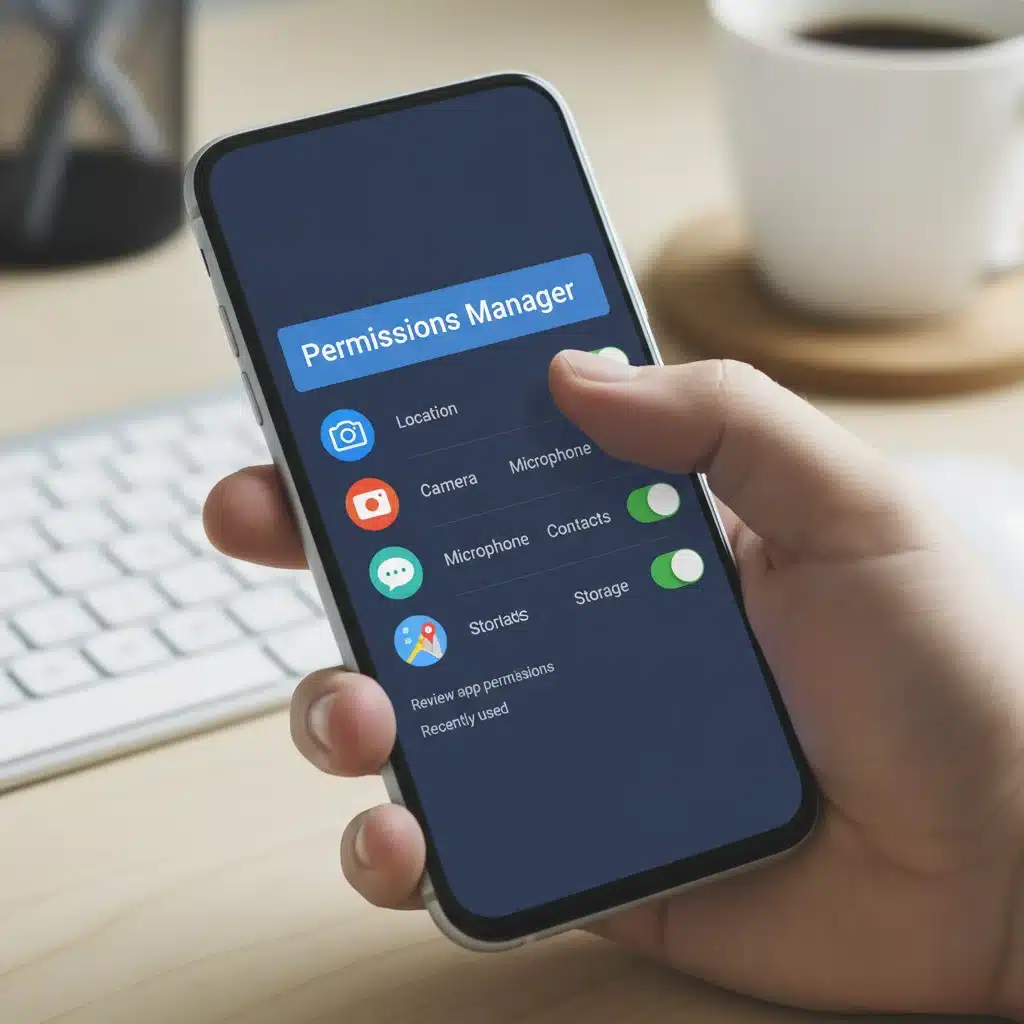
One of the most significant gateways for data collection on your smartphone is through the applications you install. Many apps request a broad range of permissions, often exceeding what’s necessary for their core functionality. For instance, why would a flashlight app need access to your contacts or microphone? In 2026, app developers are still pushing the boundaries of what they can access. Taking control of these permissions is a fundamental aspect of managing your smartphone privacy settings.
How to Manage App Permissions (Android & iOS)
Android:
- Go to ‘Settings’.
- Tap on ‘Apps’ or ‘Apps & notifications’.
- Select ‘Permission manager’ (sometimes found under ‘Special app access’ or ‘Advanced’).
- Review permissions by category (e.g., Location, Camera, Microphone, Contacts, Files and Media).
- Tap on each permission type to see which apps have access.
- For each app, choose ‘Allow only while in use’, ‘Ask every time’, or ‘Don’t allow’.
- Alternatively, you can go to a specific app’s settings and then ‘Permissions’ to adjust them individually.
iOS:
- Go to ‘Settings’.
- Scroll down and tap ‘Privacy & Security’.
- Review permissions by category (e.g., Location Services, Contacts, Photos, Microphone, Camera).
- Tap on each category to see which apps have access.
- For each app, choose ‘Ask Next Time or When I Share’, ‘Never’, or ‘While Using the App’.
- You can also scroll further down in ‘Settings’ to find individual apps and manage their permissions directly.
Key takeaway for 2026: Regularly audit your app permissions. Apps are frequently updated, and new permissions can be requested. Make it a habit to check these settings after every major app update or operating system patch. This is a cornerstone of robust smartphone privacy settings.
2. Enhance Location Services Control
Your smartphone’s location data is incredibly valuable, not just for navigation apps but also for advertisers, data brokers, and potentially malicious actors. While some apps genuinely need your location to function (e.g., maps, weather), many others do not. In 2026, the precision and frequency of location tracking have improved, making it even more critical to fine-tune your location smartphone privacy settings.
Granular Location Access
Both Android and iOS now offer more granular control over location access than ever before. Instead of an all-or-nothing approach, you can often choose:
- Always: The app can access your location at any time, even when not in use. This should be reserved for essential apps like emergency services.
- While Using the App: The app can only access your location when it’s actively open and in use. This is a good balance for many apps.
- Ask Next Time or When I Share (iOS) / Ask every time (Android): The app will prompt you for location access each time it needs it.
- Never: The app cannot access your location.
Disabling Location History
Beyond individual app permissions, your smartphone operating system often maintains a comprehensive history of your movements. Disabling this can significantly boost your smartphone privacy settings.
Android:
- Go to ‘Settings’ > ‘Location’.
- Tap on ‘Location Services’ or ‘Google Location History’.
- Toggle off ‘Location History’. You may also want to review and delete past activity.
iOS:
- Go to ‘Settings’ > ‘Privacy & Security’ > ‘Location Services’.
- Scroll down to ‘System Services’.
- Tap ‘Significant Locations’ and toggle it off. You can also clear your history here.
Pro-tip for 2026: Consider turning off location services entirely when not actively needed. This is the most secure option for your smartphone privacy settings, though it may reduce the functionality of some apps.
3. Secure Your Lock Screen and Biometrics
Your lock screen is the first barrier against unauthorized access to your device. A strong, unique passcode combined with secure biometric authentication (fingerprint, face ID) is non-negotiable. In 2026, biometric technology has become incredibly sophisticated, but so have methods to bypass it. Ensure your smartphone privacy settings reflect the highest security standards for your lock screen.
Choose a Strong Passcode
Avoid simple patterns, birthdays, or sequential numbers. A six-digit alphanumeric passcode is a good minimum, but a longer, complex one is even better. Enable auto-erase data after multiple failed attempts (with caution, as this could lead to data loss if you forget your code).
Optimize Biometric Security
While convenient, biometrics aren’t foolproof. Ensure:
- Face ID/Fingerprint: Only your biometrics are registered. Regularly check for unauthorized additions.
- Require Attention (Face ID): Ensure your device requires you to be looking at it to unlock, preventing unlocking with your eyes closed or while you’re asleep.
- Strong Companion Passcode: Biometrics can sometimes fail or be coerced. Always have a strong, memorable passcode as a backup.
Notifications on Lock Screen
By default, many phones display notification content on the lock screen. This means sensitive information (e.g., message previews, email subjects) can be visible to anyone. Adjust your smartphone privacy settings to hide sensitive content or display only app names.
Android:
- Go to ‘Settings’ > ‘Notifications’.
- Tap ‘Notifications on lock screen’ and choose ‘Hide sensitive content’ or ‘Don’t show any notifications’.
iOS:
- Go to ‘Settings’ > ‘Notifications’ > ‘Show Previews’.
- Choose ‘When Unlocked’ or ‘Never’.
Security reminder for 2026: A secure lock screen is your frontline defense. Don’t compromise on these fundamental smartphone privacy settings.
4. Manage Ad Tracking and Personalization
Most apps and online services track your activity to build a profile for targeted advertising. While this might seem harmless, it’s a significant component of data collection. Reducing ad tracking is a crucial step in bolstering your smartphone privacy settings, limiting how much data companies collect about your online behavior.
Limit Ad Tracking (iOS) / Opt Out of Ads Personalization (Android)
Android:
- Go to ‘Settings’ > ‘Google’ > ‘Ads’.
- Toggle on ‘Opt out of Ads Personalization’.
- You can also ‘Reset advertising ID’ to disassociate your device from past tracking data.
iOS:
- Go to ‘Settings’ > ‘Privacy & Security’ > ‘Tracking’.
- Toggle off ‘Allow Apps to Request to Track’.
- You can also review individual apps that have requested permission to track you and disable them.
Browser-Level Tracking Protection
Your web browser is another major vector for tracking. Utilize built-in privacy features in your browser of choice (Safari, Chrome, Firefox Focus, Brave) to block third-party cookies, prevent cross-site tracking, and enable ‘Do Not Track’ requests. This complements your device-level smartphone privacy settings.
Privacy tip for 2026: Regularly reset your advertising ID. This makes it harder for advertisers to build a long-term profile of your activities. This small but effective action is part of comprehensive smartphone privacy settings.
5. Encrypt Your Backups and Data
Even if your phone is locked and secure, your data might be vulnerable if your backups aren’t encrypted. Cloud backups, while convenient, need to be handled with care. Ensuring your backups are encrypted adds another layer of security to your smartphone privacy settings.
Local Backups
If you back up your phone to a computer, ensure that backup is encrypted. iTunes (for iOS) offers an option to encrypt local backups with a password. Android users often rely on third-party tools or direct file transfers, where encryption is managed at the disk level.
Cloud Backups
Many users rely on cloud services like Google Drive, iCloud, or OneDrive for automatic backups. While these services typically encrypt data in transit and at rest, the level of encryption and who holds the keys can vary. For maximum privacy:
- iCloud: Apple offers end-to-end encryption for many data categories (e.g., Health data, passwords, Wi-Fi information) when using iCloud Backup. For Messages in iCloud, make sure iCloud Backup is enabled.
- Google Drive: Google encrypts data at rest and in transit. However, Google holds the encryption keys. If you require absolute privacy, consider alternative encrypted cloud storage solutions or local encrypted backups.
End-to-End Encryption for Messaging
Beyond backups, ensure your communication is private. Use messaging apps that offer end-to-end encryption by default, such as Signal, WhatsApp (though Meta collects metadata), or iMessage. This is a crucial, often overlooked, aspect of your smartphone privacy settings.

Data security measure for 2026: Always use strong, unique passwords for any encrypted backups and cloud services. This forms an unbreakable chain of trust within your smartphone privacy settings.
6. Master Network and Connectivity Privacy
How your smartphone connects to the internet and other devices can also pose significant privacy risks. Public Wi-Fi networks, Bluetooth connections, and even your cellular data can be exploited if you’re not careful. Optimizing your network smartphone privacy settings is essential.
Public Wi-Fi Risks
Public Wi-Fi networks are often unsecured, making your data vulnerable to eavesdropping. Avoid conducting sensitive transactions (banking, shopping) on public Wi-Fi. If you must use it, employ a Virtual Private Network (VPN) to encrypt your traffic. Many reputable VPN providers offer apps specifically designed for smartphones.
Bluetooth and AirDrop/Nearby Share
Keep Bluetooth and AirDrop/Nearby Share turned off when not in use. When enabled, these features can be used to track your device or expose you to unwanted file transfers. Adjust their visibility settings to ‘Contacts Only’ or ‘Off’ rather than ‘Everyone’.
Private Wi-Fi Address (iOS) / MAC Randomization (Android)
Both iOS and Android now offer features to use a private or randomized MAC address when connecting to Wi-Fi networks. This prevents network operators from tracking your device’s activity across different networks over time, significantly enhancing your smartphone privacy settings.
Android:
- Go to ‘Settings’ > ‘Network & internet’ > ‘Internet’.
- Tap the gear icon next to the Wi-Fi network you’re connected to.
- Tap ‘Privacy’ and choose ‘Use randomized MAC (default)’ or ‘Use device MAC’. Randomized is preferred.
iOS:
- Go to ‘Settings’ > ‘Wi-Fi’.
- Tap the ‘i’ icon next to the network you’re connected to.
- Toggle on ‘Private Wi-Fi Address’.
Connectivity hygiene for 2026: Be mindful of what networks you connect to and how. These proactive steps are vital for your smartphone privacy settings.
7. Regularly Update Your Software and Apps
This might seem like a basic tip, but it’s one of the most critical. Software updates for your operating system (iOS, Android) and individual apps often include vital security patches and privacy enhancements. Ignoring updates leaves your device vulnerable to known exploits.
Why Updates are Crucial for Privacy
Cybersecurity researchers and developers are constantly discovering and fixing vulnerabilities. When a new vulnerability is found, attackers can exploit it to gain unauthorized access to your device and data. Updates often contain ‘fixes’ for these security holes. Delaying updates means you’re operating with known weaknesses, directly impacting your smartphone privacy settings.
Enable Automatic Updates
To ensure you’re always protected, enable automatic updates for both your operating system and your apps. While some users prefer manual control, the security benefits of automatic updates generally outweigh the minor inconveniences.
Android:
- OS Updates: ‘Settings’ > ‘System’ > ‘System update’. Check for options to auto-download or install.
- App Updates: Open Google Play Store, tap your profile icon, go to ‘Settings’ > ‘Network preferences’ > ‘Auto-update apps’. Choose ‘Over Wi-Fi only’.
iOS:
- OS Updates: ‘Settings’ > ‘General’ > ‘Software Update’ > ‘Automatic Updates’. Toggle on ‘Download iOS Updates’ and ‘Install iOS Updates’.
- App Updates: ‘Settings’ > ‘App Store’. Toggle on ‘App Updates’.
Essential practice for 2026: Make software updates a priority. It’s the simplest yet most effective way to maintain robust smartphone privacy settings and overall device security.
Beyond the Seven: Additional Privacy Considerations for 2026
While the seven settings above form the bedrock of your smartphone privacy, the digital world of 2026 demands continuous vigilance. Here are a few more points to consider:
Use a Privacy-Focused Browser and Search Engine
Beyond built-in browser protections, consider using browsers like Brave or Firefox Focus, which are designed with privacy in mind. Couple this with privacy-focused search engines like DuckDuckGo or Startpage to minimize your online footprint.
Be Wary of Third-Party Keyboards
Many third-party keyboards offer advanced features but may also collect your typing data. Stick to the default keyboard or choose a highly reputable third-party option that explicitly states its privacy practices.
Understand Data Breach Notifications
In 2026, data breaches are unfortunately common. Familiarize yourself with how your smartphone or accounts notify you of potential breaches and what steps to take if your data is compromised.
Regularly Review Privacy Policies
While tedious, occasionally reviewing the privacy policies of the apps and services you use can reveal insights into how your data is being handled. Look for clear language regarding data collection, usage, and sharing.
Consider a Privacy-Focused Operating System
For the truly privacy-conscious, alternative Android distributions like GrapheneOS or CalyxOS offer enhanced security and privacy features, though they require a higher level of technical proficiency.
The Future of Smartphone Privacy in 2026 and Beyond
As we move further into 2026, the discussion around digital privacy will only intensify. Governments, tech companies, and users all have a role to play. However, as individuals, our most immediate and impactful action is to take control of the tools in our hands. By diligently managing your smartphone privacy settings, you’re not just protecting your own data; you’re contributing to a larger movement towards a more private and secure digital ecosystem.
The convenience of modern smartphones comes with the responsibility of safeguarding the vast amount of personal information they manage. It’s a continuous process, not a one-time setup. Make it a habit to regularly review and adjust your settings as new apps are installed, software is updated, and your comfort level with data sharing evolves. Your digital peace of mind in 2026 depends on it.
Conclusion: Empowering Your Digital Self
In conclusion, mastering your smartphone privacy settings is no longer an optional task but a fundamental requirement for navigating the digital world of 2026 securely and confidently. By implementing these seven essential steps – from meticulously reviewing app permissions and controlling location data to securing your lock screen, managing ad tracking, encrypting backups, optimizing network privacy, and keeping your software updated – you empower yourself to reclaim ownership of your personal information.
The journey to robust digital privacy is ongoing. The technological landscape is perpetually shifting, bringing both innovation and new challenges. Therefore, the commitment to regularly auditing and fine-tuning your smartphone privacy settings should be a continuous endeavor. Think of it as digital hygiene, a routine practice that protects your most valuable asset: your personal data. By taking these proactive measures, you not only shield yourself from potential threats but also foster a more secure and respectful digital environment for everyone. Stay informed, stay vigilant, and take control of your smartphone’s privacy today.